Showing posts with label Designs by Ashlee. Show all posts

Friday, February 26, 2010

Friday Freebie

I have a great QP for you today. I used Feelin Froggy? by Designs by Ashlee. This is one of her newest kits that should be available at the DSM store next week.


You can get this free QP here.

Friday, December 11, 2009

12/11 Friday Freebie from Designs by Ashlee

Hello there everyone and welcome to my friday freebie!

Today I have for you a pretty cool Hybrid Project! I have created for you this template for a Boy Brag Booklet


You can open up either the .psd or .png pages that are included in the download and design your book! These pages will print at 8x10 and 300 dpi. All you do is cut it out and add whatever finishing touches and bind it how you like! I hope you enjoy this limited time only Freebie!

Download your Freebie HERE

Tuesday, October 20, 2009

Tuesdays Tips and Tuts

Good Morning everyone! Welcome again to this weeks Tuesday Tut, brought to you by Designs By Ashlee!

Today I want to tell you about matting photos in your layouts. What exactly is a photo matte? Well it is just another way to make your photos pop right off of those layouts. It just adds another element that can be stunning and just what your layouts need to stand out. I am going to tell you about 2 ways to matte on your LO's.

1st technique: Adding a Stroke

1. On your picture layer go to blending options
2. Add a Stroke whatever color you want your matte to be (white
works for an old fashioned photo style)
3. Adjust the size that fits your desired effect.
4. Add a drop shadow, not too drastic, but enough that it will
give depth to your layout and appear the photo is coming off
of the page


2nd technique: Paper Matte

1. Place your photo layer above your paper layer.
2. CTRL+click on the thumbnail of your photo layer to select it
3. Select-Modify-Expand approx. 150 pixels or you desired amount
of paper you would like showing on the matte.
4. Select-Inverse and choose your paper layer hit delete.
5. you may add a drop shadow to your photo above the paper matte
for extra depth if you'd like, otherwise merge visible.


Tuesday, September 29, 2009

Tuesdays Tips and Tuts

Welcome to DSM's 1st Tuesday Tutorial! Brought to you by Designs by Ashlee!

To do this tutorial you will need some basic knowledge of Photoshop, but the instructions are pretty simple. Photos are included to hopefully make things easier!


Stitch on A Text Tutorial

STEP 1
Type out your text in the size and font of your choice


STEP 2
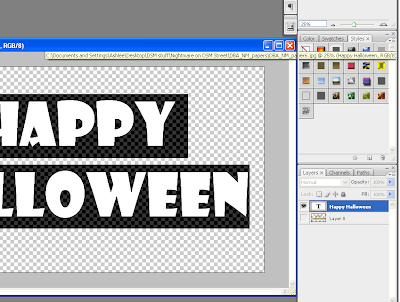
Right click your text layer and choose Creat Work Path
(your text will have a solid outline, i've added a background to show this)
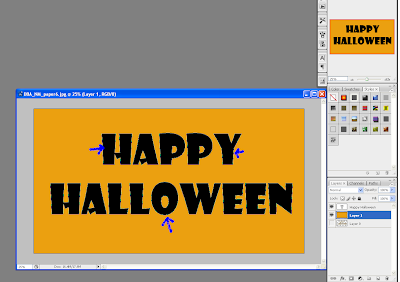


STEP 3
Create a new layer above your text, call it stitches
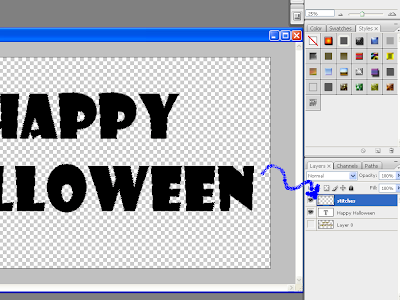


STEP 4
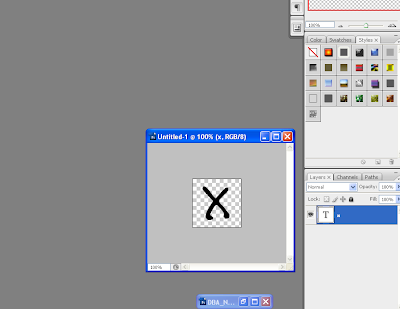
Now to create our stitch. Open a new document 100x100 and choose a font with either a letter X or V
(which ever you prefer for your stitch)


STEP 5
Go to Edit>Define Brush Preset and save your stitch
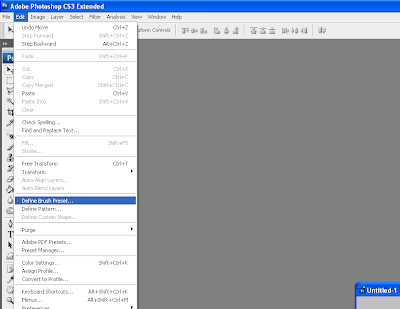


STEP 6
Back to your text, select your brush tool and choose Brushes from your window menu
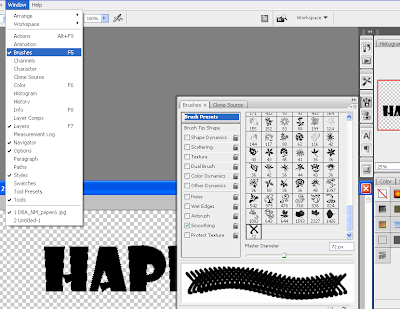


STEP 7
Adjust the size oof your brush to a size that works with your text and place your spacing around 90%
(play around with it) & set your shape dynamics to match Step 7 pic
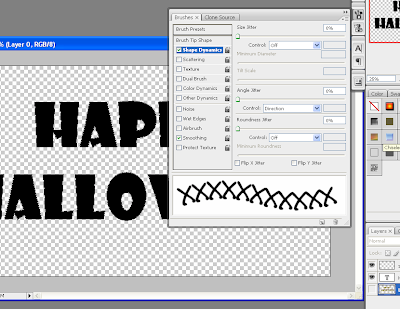


STEP 8
choose the color of your stitch, select the stitches layer and choose paths on your layer palette.
Right click your work path & stroke path with your bru
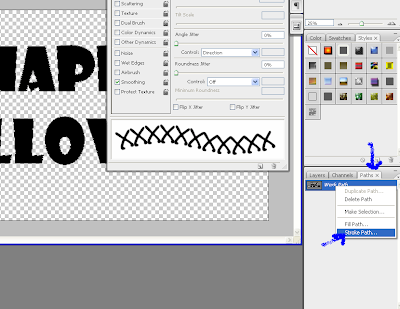


STEP 9
Click back on yourlayers palette, should look similar to the Step 9 image. (a background was added to show the effect)
If you don't like how the stitching looks, play around with the brush settings until you reach your desired effect.

Friday, August 14, 2009

8/14 Speed Scrap 10:30 pm EST


Wanna see what you are playing for?


This is the set of upper case balloon alpha from my Birthday Bash kit! Can't find this anywhere else right now! So come join me and pick up your awesome prize!
 
Digi Scrapbook Mania Forum Digi Scrapbook Mania Shop Digi Scrapbook Mania Gallery Digi Scrapbook Mania Designers